Chrome extension
Turn any page into an inspection + design surface, edit styles live, jump to source, and hand elements to the AI — from one tab.
The Chrome extension turns any page into an inspection + design surface, and hosts the side-panel AI chat. Select an element to read and edit its styles, copy/paste looks between elements, jump to its source, or hand it to the AI — all without leaving the tab.
Visual inspector
Hover to highlight, click to select. The side panel shows the selected element across these views:
| View | What it shows |
|---|---|
| Design | The main editing surface, with three sub-views: Styles (editable controls — typography, color, spacing, box-shadow, transform, layout box — that write live to the element), CSS code (the generated selector { … } for your edits, editable), and React (the component tree + source location for the node). |
| Colors | A dedicated color inspector for the element / page palette. |
| Fonts | Typography specimen — family, size, weight, line-height, letter-spacing. |
| Assets | Images/media under the element, each with a preview, a download, and the resolved absolute source URL. |
| Bucket | History + clipboard — copied elements/styles you can reapply. |
Design panel — edit styles live
The Design tab is a real editor, not a read-out. Change a value and it's written to the live DOM immediately:
Layout box
Box shadow
Transform
Type & color
This is the Figma-like styling workflow — see the Design your page like Figma guide.
Element actions menu
- Copy — snapshot the element (styles + markup) to the Raplify clipboard.
- Paste styles — apply the copied element's styles onto the selected element.
- Paste element — replace the selected element with the copied one.
- Ask AI — open the compose popover (below).
"Ask AI" on an element — comment to the AI
Click Ask AI on the selected element to open an anchored compose popover. Type what you want, and Raplify packages the full context and sends it as one chat turn:
- a screenshot of the element (captured via the privileged tab-capture, cropped to its rect; falls back to in-page capture),
- its CSS selector,
- its React component path + source location,
- your prompt.
While the AI works, an animated outline + “Raplify is working on this…” badge sits around that element until the turn completes. It's effectively commenting on a UI element to ask the AI for a change or to flag an issue.
UI → code navigation
Click a node in the React view (or a file reference in a chat tool card) to jump to its
source. Raplify routes the open intelligently (openSourceInEditor): if the Raplify
dev-editor currently holds bridge access to that file's project it opens in-browser wired to
the live workspace; otherwise it opens native VS Code via a
vscode://file/<path>:<line>:<col> link. One click from a live element to the exact line of code.
Side-panel AI chat
The same @raplify/ui chat surface used in VS Code and IntelliJ, wired to the bridge:
Lanes + queue
Model + mode
Image attach
History
Tool cards
Rich markdown
$…$) and footnotes render in assistant replies.Crash + reconnect
Commands gallery
Floating launcher
A draggable, edge-snapping floating Raplify button on the page (toggleable). Click it to open the side panel for that tab. It hover-expands to surface quick inspector actions.
Connecting to your editor
The extension drives your editor through the secure bridge. A page opened with a one-time
?raplify-code-token= / ?raplify-vscode-token= param auto-authorizes that origin only,
then strips the param. Full flow: Install & connect the bridge.
Roadmap
One-click Preview of your edited page and Share (hand the styled page to a teammate) are planned, not shipped today.
Screenshots
The launcher

Raplify’s entry point on any page you are working on.
The inspector
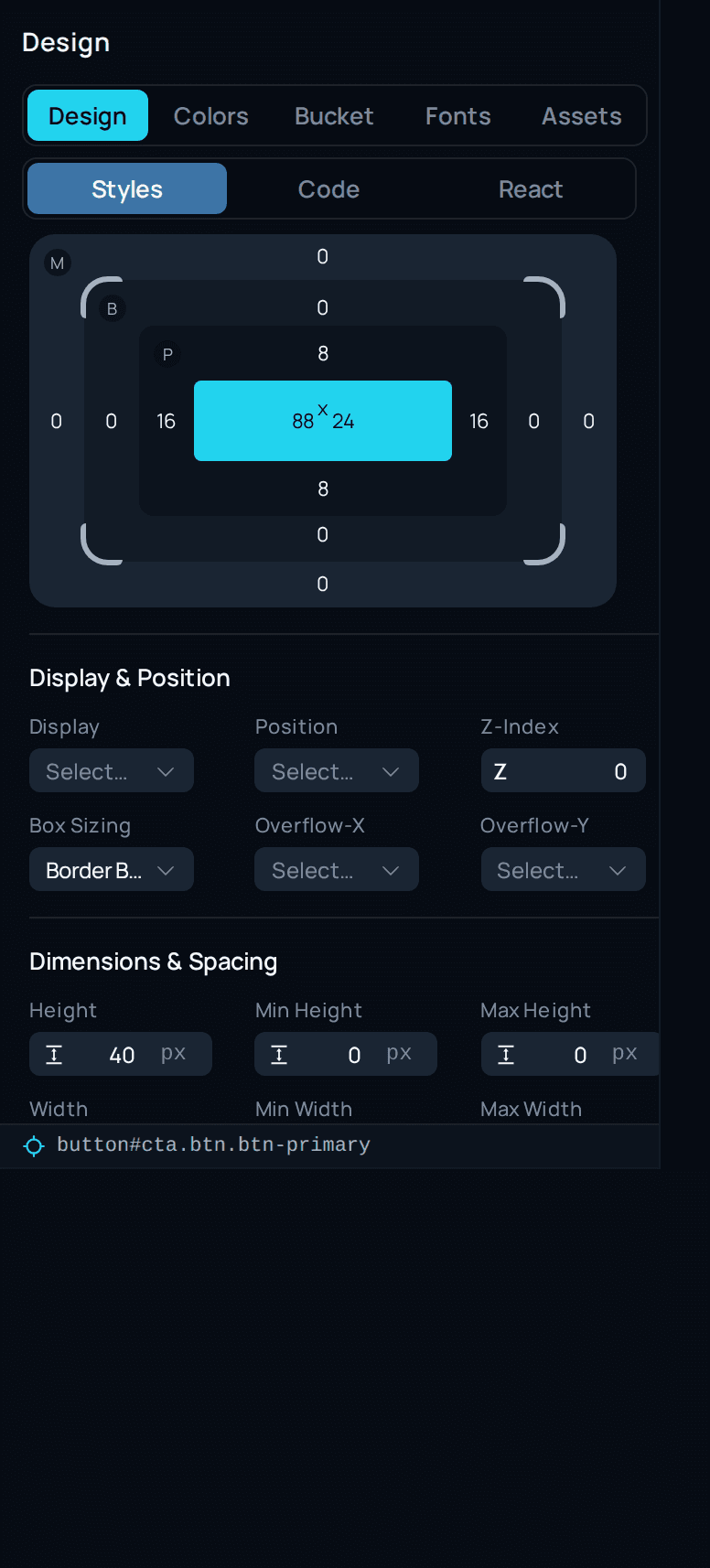
An element selected — styles, code, and the React tree in one drawer.
Element toolbar
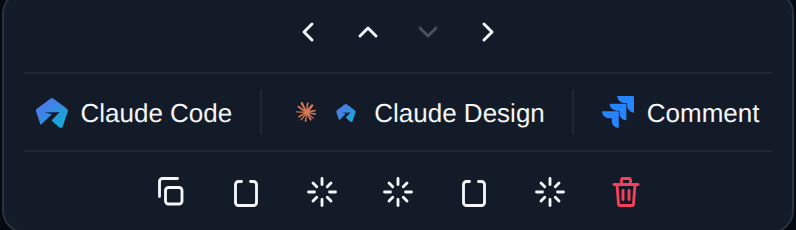
The toolbar that follows your selection on the page.
The annotation editor
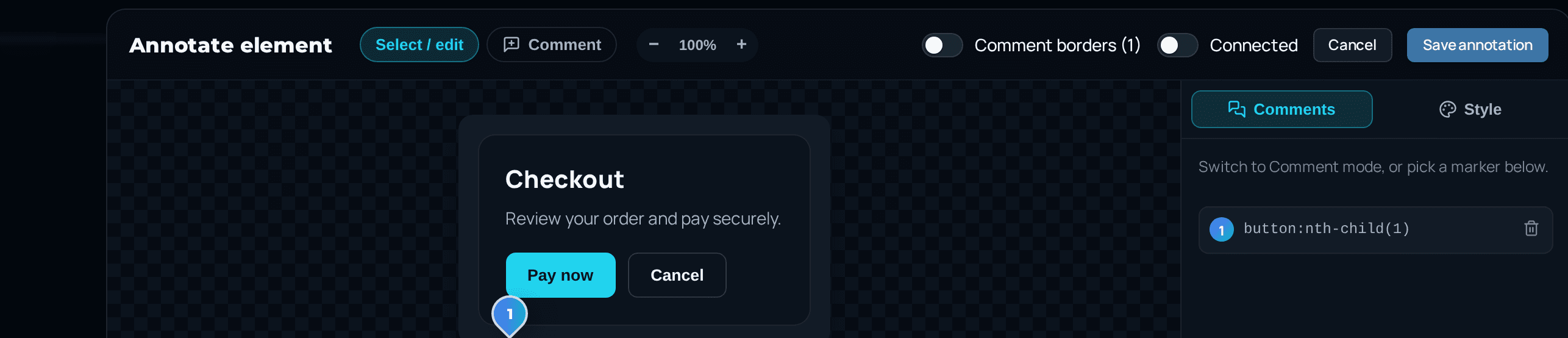
Mark up a captured screen and turn it into a ticket.
React tree
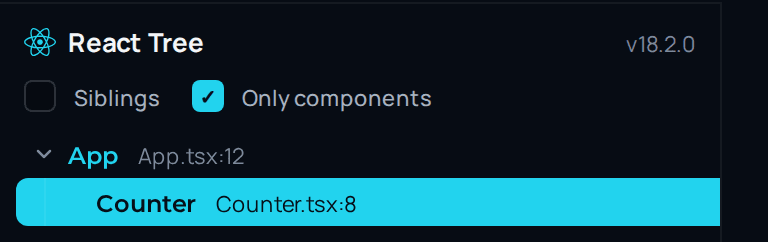
Jump from a rendered node to the component that owns it.
Design panel
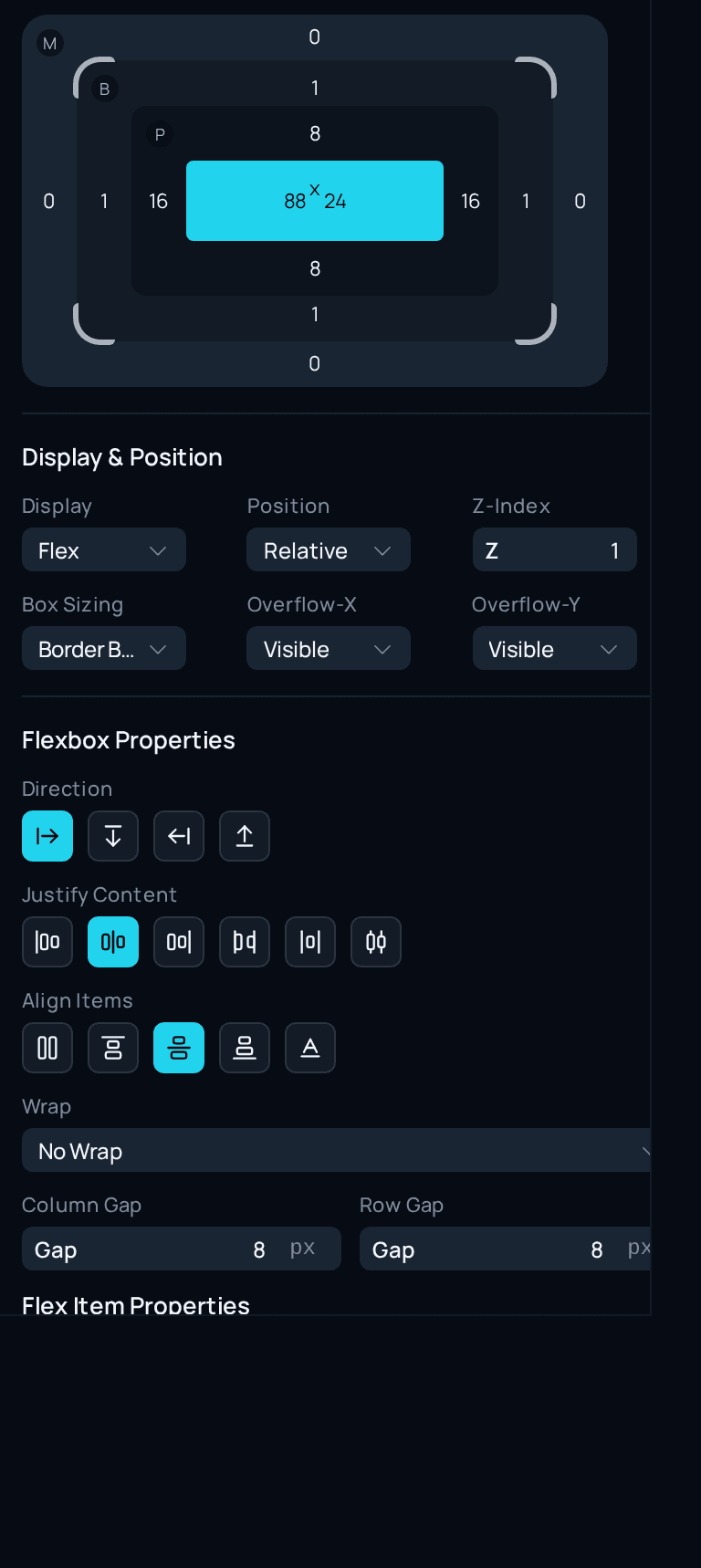
Edit spacing, type, and colour on the live element.
Capture panel
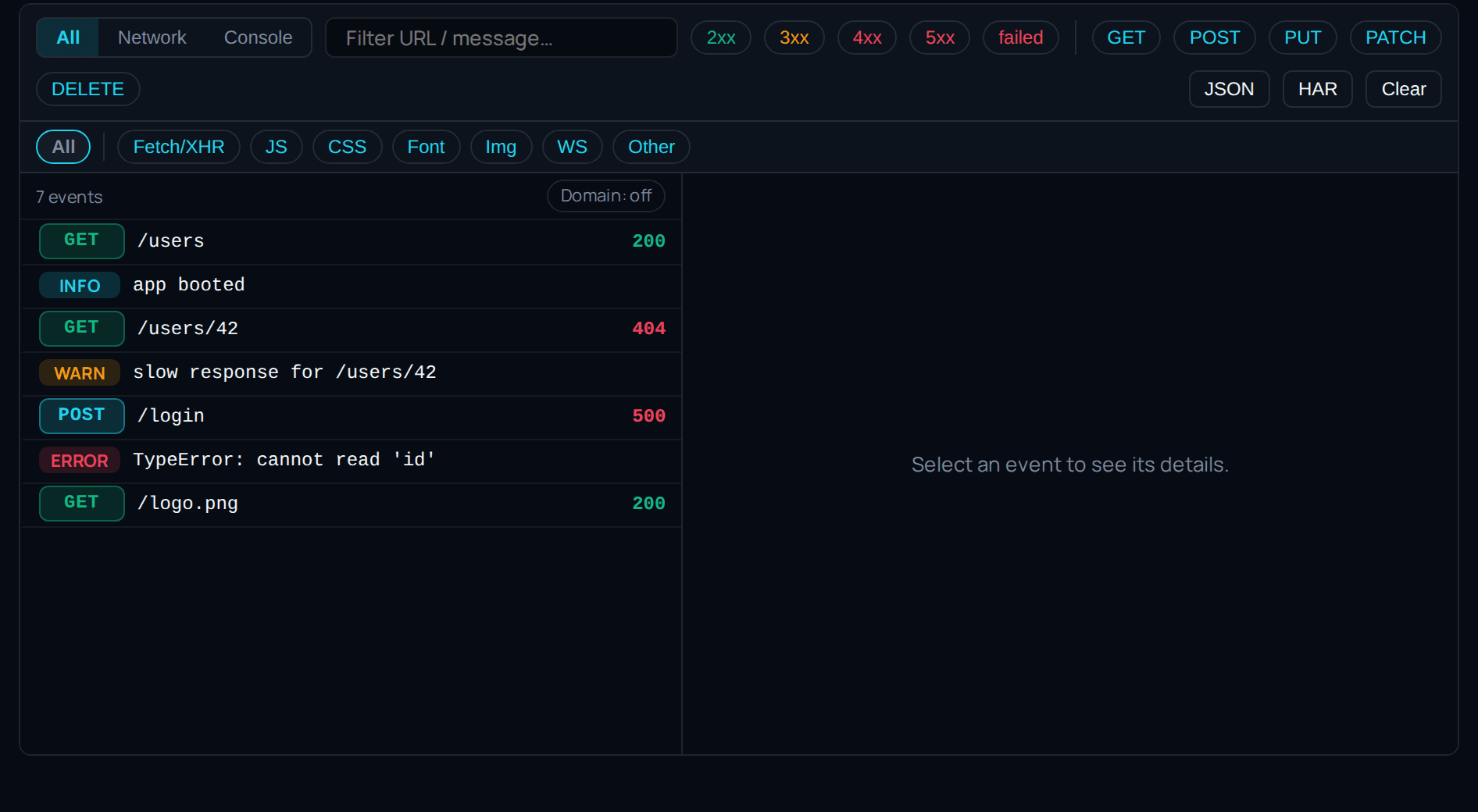
Network and console events collected alongside the screenshot.
Mined design system
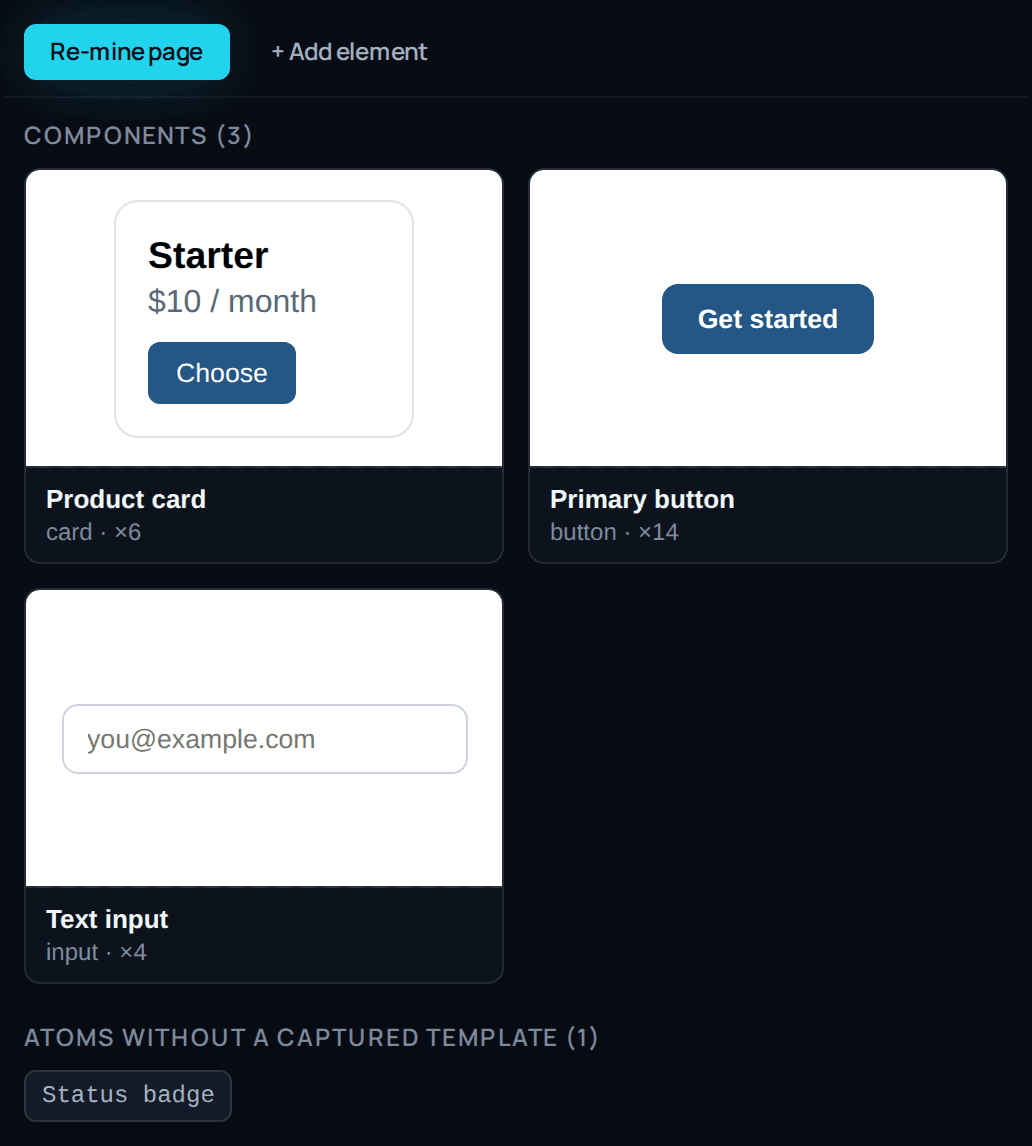
Tokens lifted straight out of the running page.
The chat surface
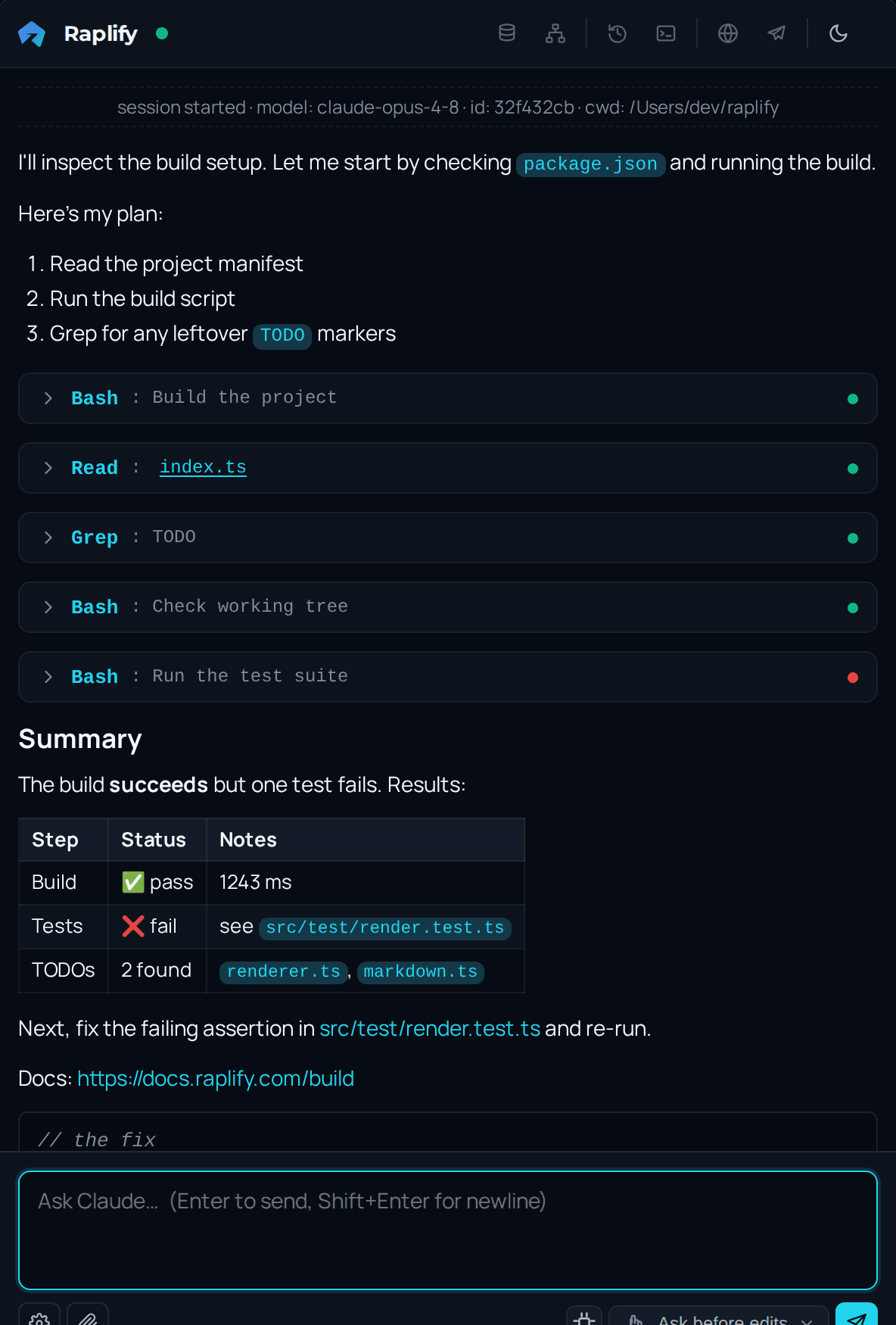
The side panel chat — the same surface as the IDE, with the page as context.
Share to Slack
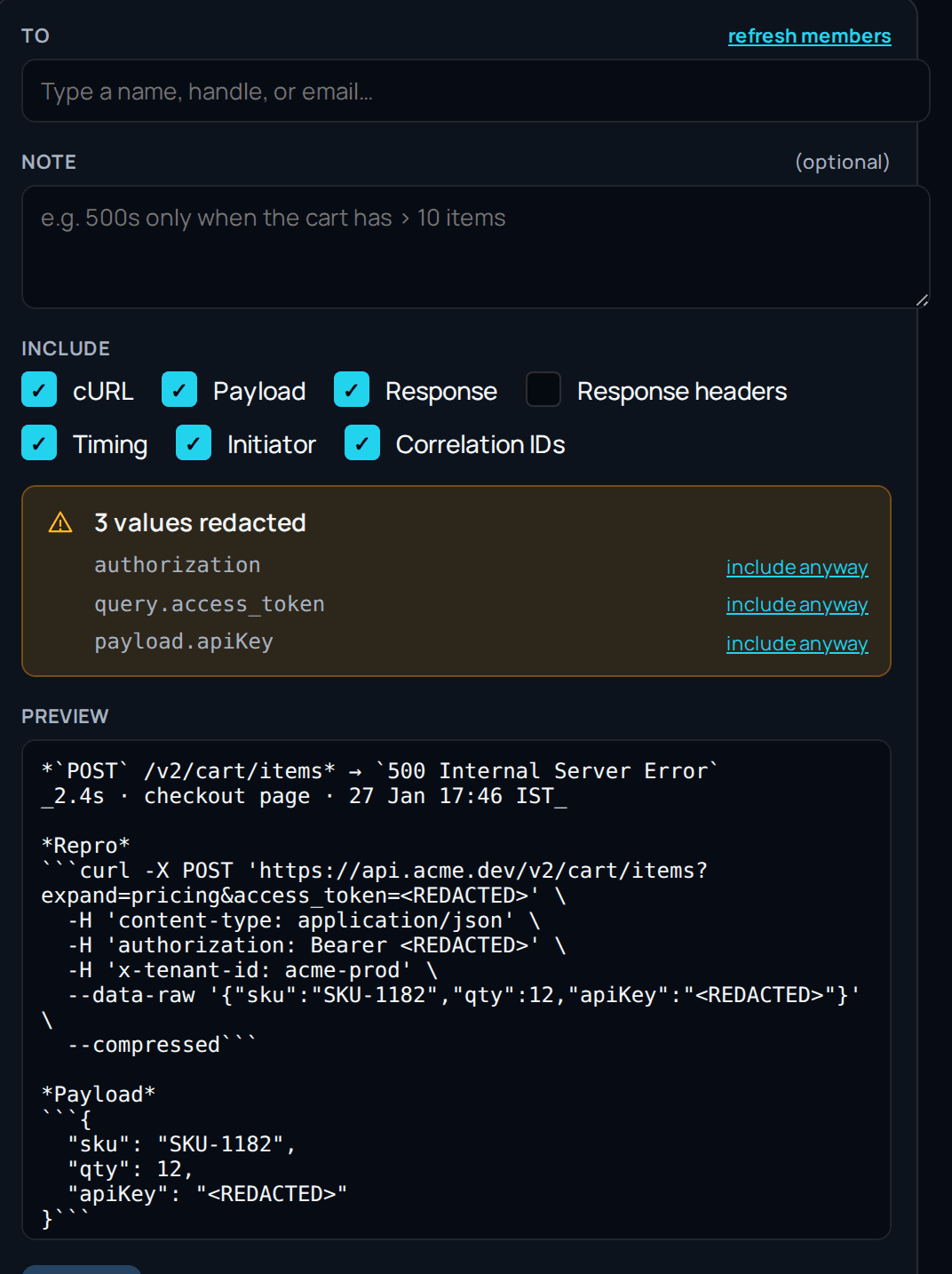
Redactions are applied before anything leaves the browser.